Connecting the camera
| 1. Switch on the camera. Initialization can take up to about 40 seconds. | |
| 2. Start GCT from your desktop. | |
| 3. On the toolbar click Run device discovery. | |
| 4. Click Start Discovery in the Discovery dialog. The Dialog window shows all discovered cameras. | 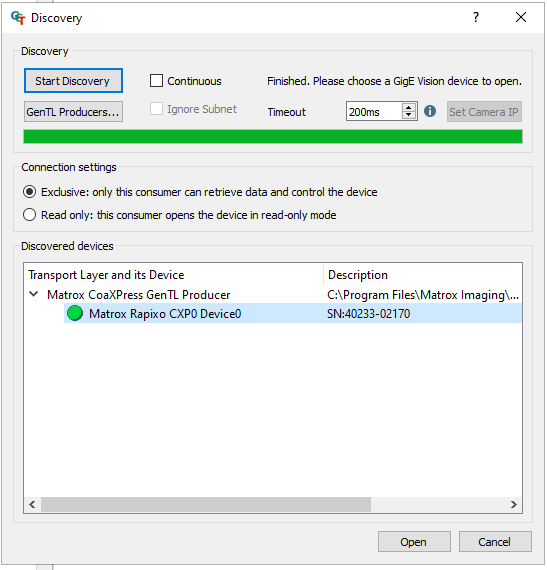 |
| 5. Select the camera and click Open. |
Connection two cameras with one PC
The latest GCT2 version does not have support for multiple cameras in one GCT2 instance. To connect more than one camera to the PC, you need to open two instances (Windows) to connect the camera to a PC.
If you connect two cameras to the PC and open a new instance of GCT2, you can select one camera and connect it to the GCT2 instance. Both cameras are visible in the Discovery window. With a second GCT2 instance, you can connect the second camera.
Edit Transport Layer
The Transport Layer (TL) is used to refer to the interface such as GigE (Kithara or s2i) or CoaXPress.
To change the Transport Layer, please follow the instructions below.
| 1. Switch on the camera. Initialization can take up to about 40 seconds. | |
| 2. Start GCT from your desktop. | |
| 3. On the toolbar click Run device discovery. | |
| 4. Click Start Discovery in the Discovery dialog. The Dialog window shows all discovered cameras. | |
| 5. Click GenTL Producers. | |
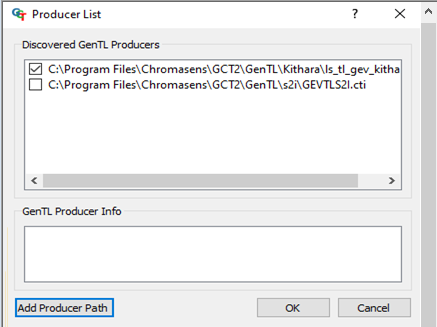 | |
| 6. Select the certain file, for example, ls_tL_gev_kithara.cti or GEVTLS2I.cti, and click or clear the bock | |
| 7. Confirm your configuration with OK. |
Note
During the first discovery process after installation, GCT fetches the paths from the system environment variable GENICAM_GENTL64_PATH and searches for .cti files in each folder. If the transport layer files are found and parsed, the camera can be detected with the corresponding transport layer. This may take several minutes during the first discovery process.