Before you can perform the color calibration, please make sure that your camera is correctly calibrated and the appropriate DSNU and PRNU are loaded.
Also disable the Gamma function (LUT)
Introduction
The aim of color calibration is to transfer the color space determined by the properties of the camera and lighting into a standardized output color space. Typical color spaces are e.g. XYZ, sRGB, Adobe RGB, ECI RGB and CIELAB. The GCT Color Calibration wizard offers an easy way to calibrate Allied Vision cameras. It compares scanned image data with a reference data set measured with a calibrated device and determines a color conversion matrix (CCM) that can then be loaded into the camera.
Prepare your system
Before you can start the Color Calibration process, you need to prepare your system as the following:
Place a ColorChecker Classic or ColorChecker Digital SG under the camera, and acquire the image under the same condition as you performed the Camera image calibration.
Generate Color Calibration
Place a Color reference under the camera.
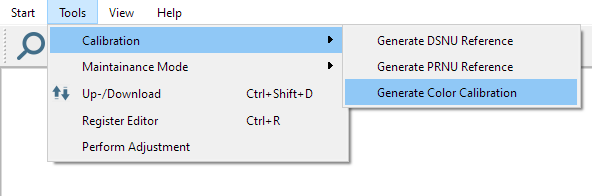
In the menu bar navigate to Tools —> Calibration.
Click Generate Color Calibration dialog.
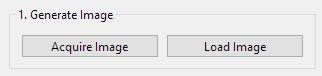
Click Acquire image to generate the Calibration directly form the camera or click Load image to load an image from the hard drive.
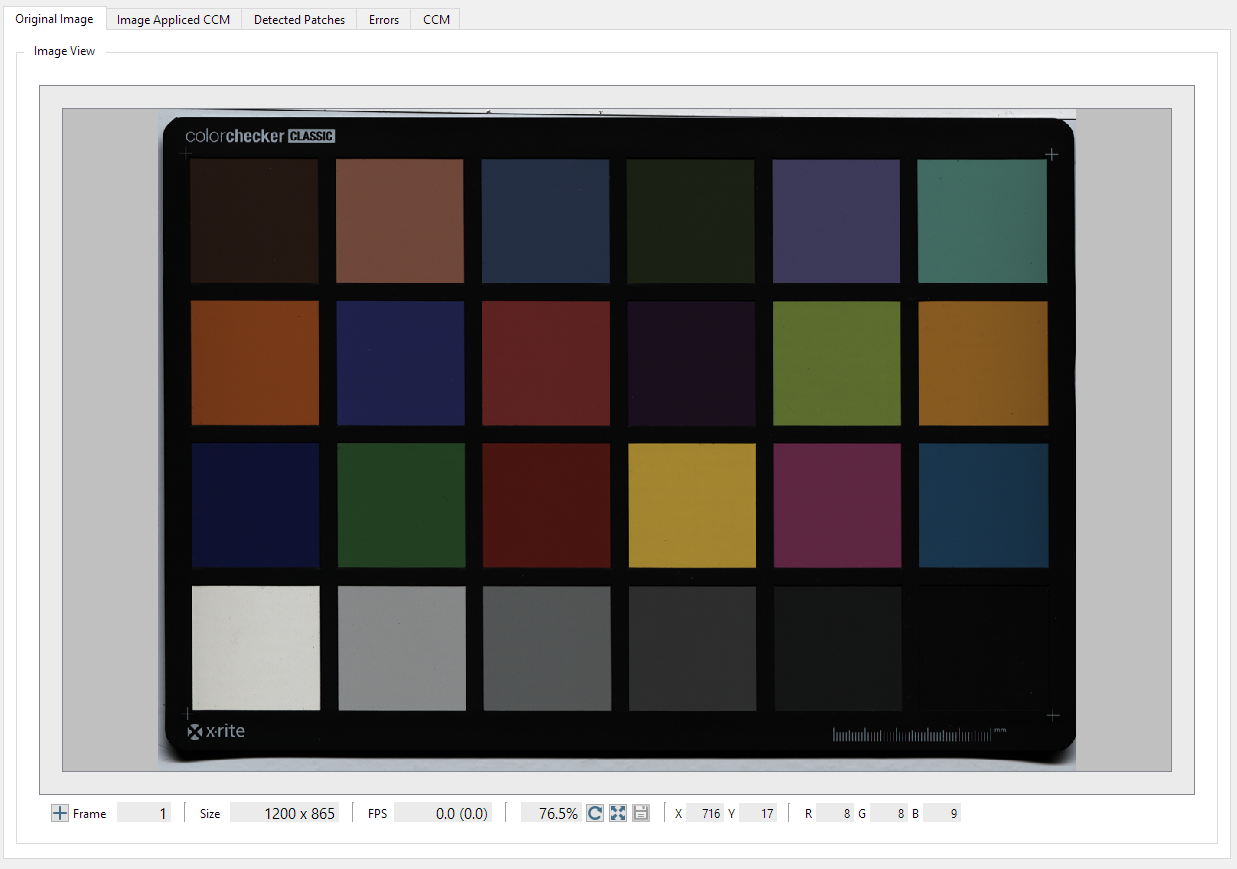
The raw image is displayed in the tab on the right side.
For some images, it is required to select a ROI. Therefore, Click on ROI Selection and select the ROI with the left mouse and Click OK.
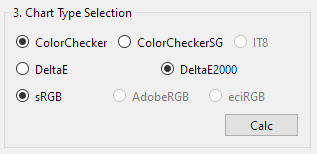
Select your Color reference chart and the color distance metric: - DeltaE for CIE76 - DeltaE2000 for CIE2000
Click Calc to calculate the Color calibration and the Statistics.
The output of the calculation are four new tabs in the window.
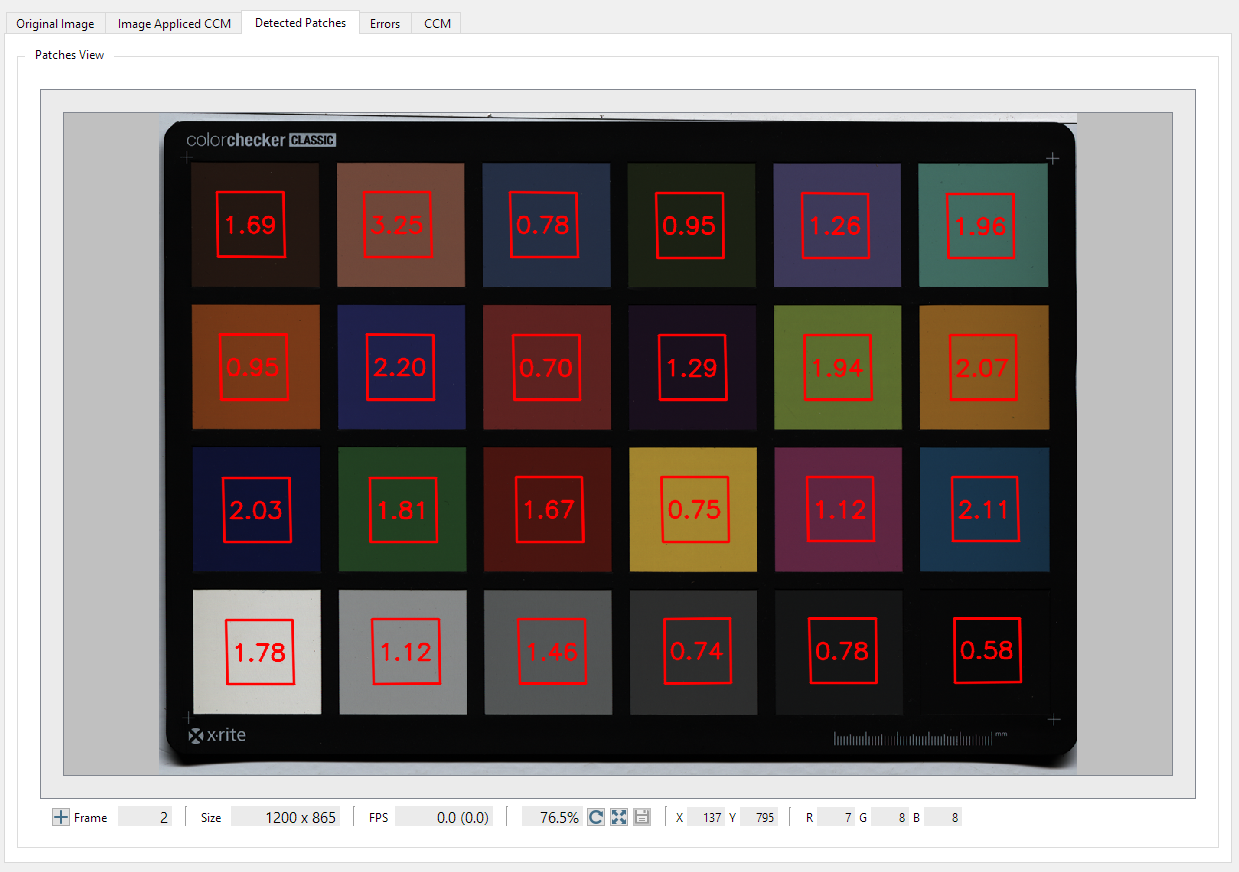
The first tab is the Detected Patches here you can see the ROI and the calculated error to the reference image.
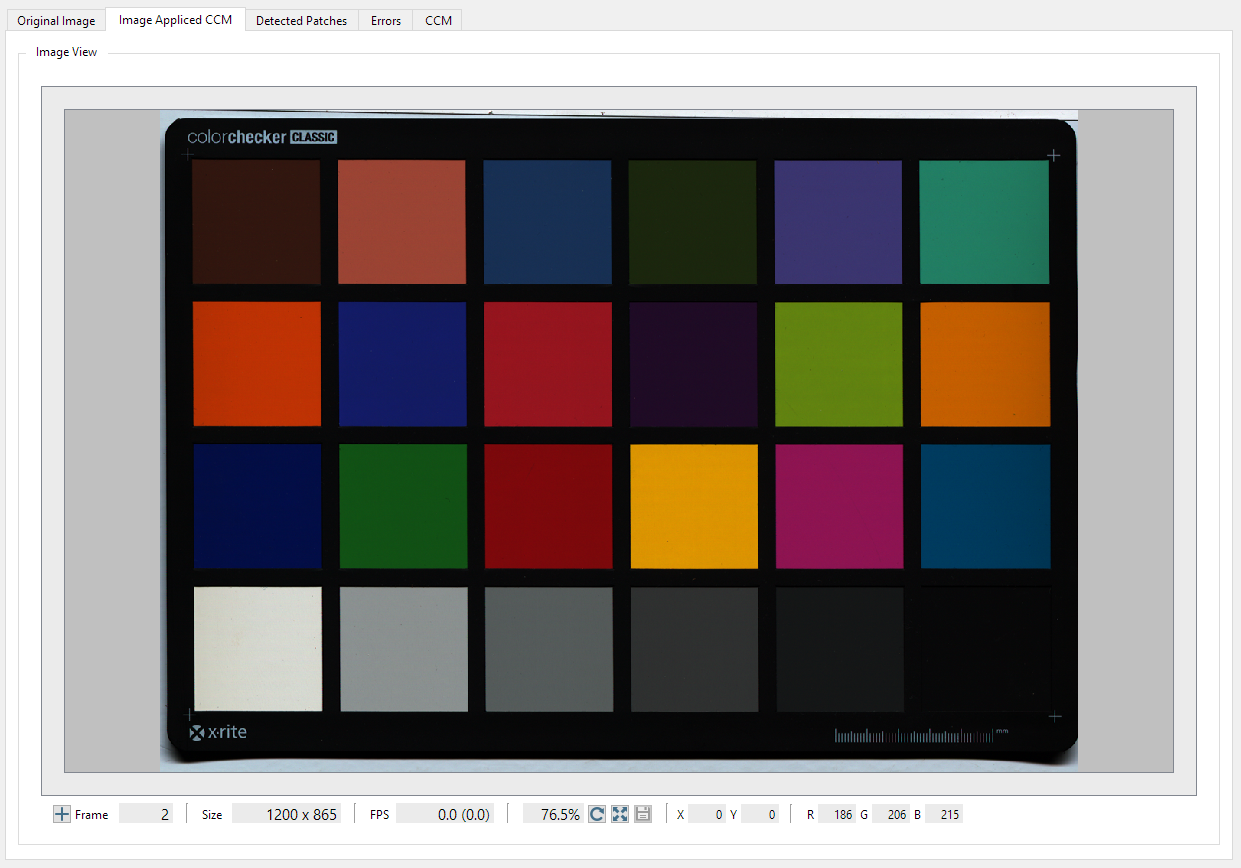
The tab Image Applied CCM shows the applied color calibration to the input image.
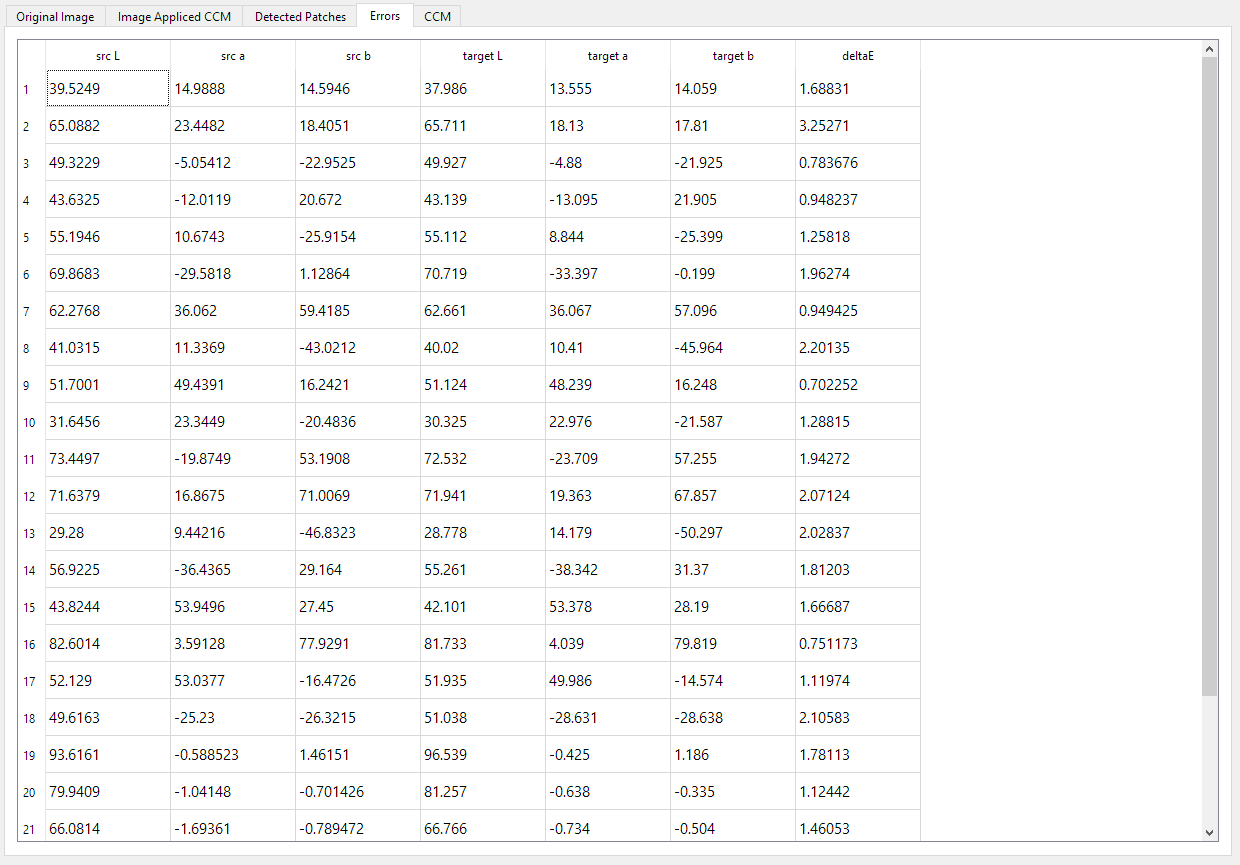
The Error tab shows a table with the Source (src) L*a*b* and the Target (target) L*a*b* values as well as the detla E error.
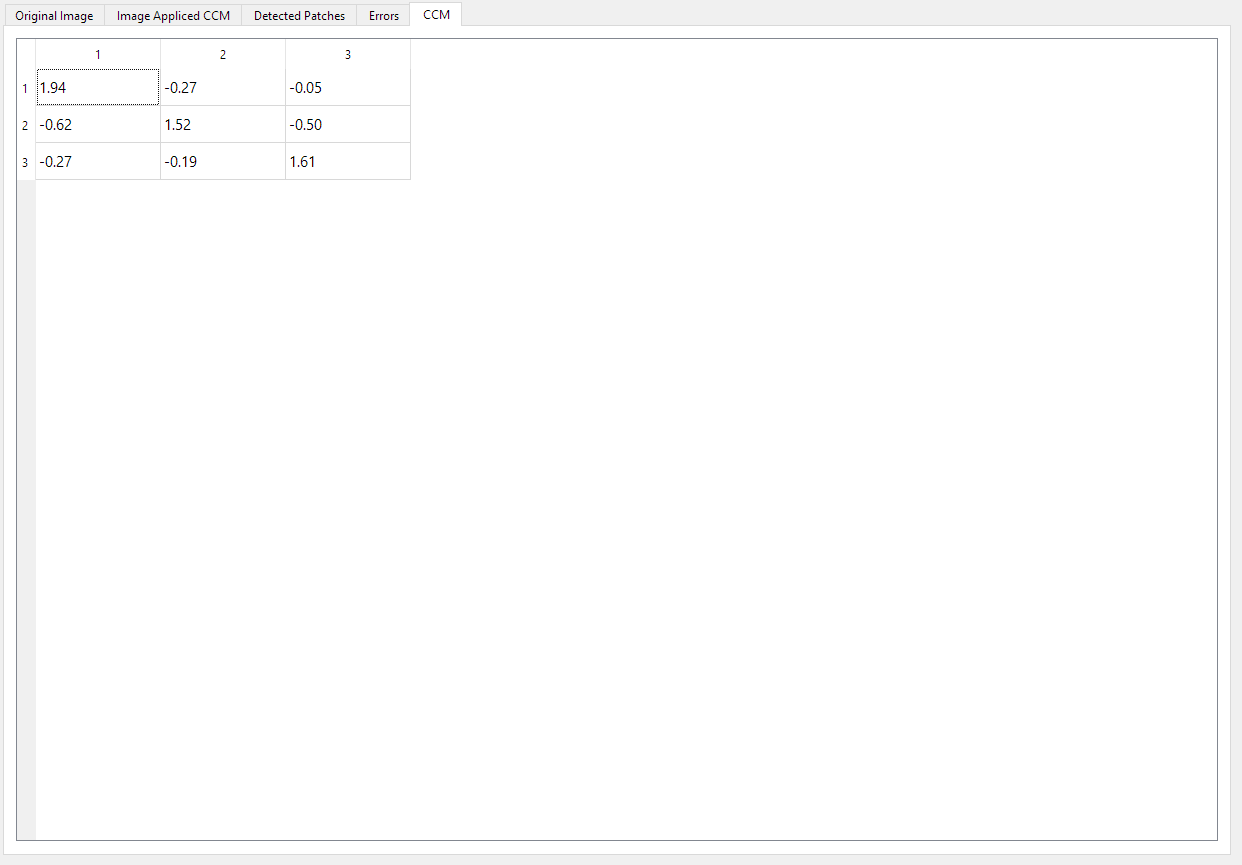
The CCM tab shows the coefficients for the CCM or Color Transformation Values
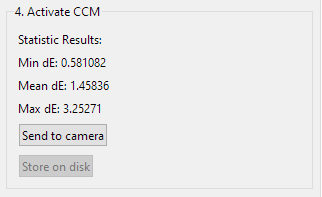
The last step is to evaluate the Statistic Result the Max dE should under 10.
Click Send to camera to sent the Color Transformation values to the camera and automatic activate the Color transformation.
Color metric
Delta E
Interpretation of the delta E values
Delta Value
Human Perception
0.0 - 1.0
Not or hardly perceptible
1.0 - 2.0
Perceptible by experienced observers
2.5 - 3.5
Perceptible even by inexperienced observers
3.5 - 5
Clear color difference
5.0 and higher
Large color difference
Dark signal non-uniformity
Photo Response Non Uniformity
GenICam Control Tool
Chromasens Software to communicate with cameras that fulfill the GenICam standards.
The Color conversion matrix (CCM) supports the conversion from for example RGB to sRGB or any user-defined conversion

.png)